Issue Description
After importing a point cloud into Archicad, it appears mirrored or rotated.
Solution
If an imported point cloud appears mirrored or rotated, first check the object’s placement settings:
- Select the point cloud object.
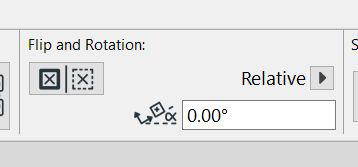
- In its settings, ensure that Flip is turned off.
- Set Rotation to 0.00.
- Reposition or align the point cloud as necessary.
- Apply the changes and check the point cloud in the Floor Plan and 3D views.
Notes:
- Use Flip and Rotation only to correct the placement of the imported object; they are not point-cloud-specific import settings. If resetting Flip and Rotation does not resolve the issue, correct the cloud’s axis orientation or coordinate settings in the source software, then reimport it.
- If you mirror the point cloud, verify its location afterwards. To retain alignment with the project coordinates, move it back to the required reference point or reimport it using Point Cloud Origin at the Project Origin. Archicad supports placement either at the Project Origin or at a manually selected location.