Issue Description
When you run the License Manager Tool to check, upload, or download a license, the following error appears: Connection to the server could not be established.
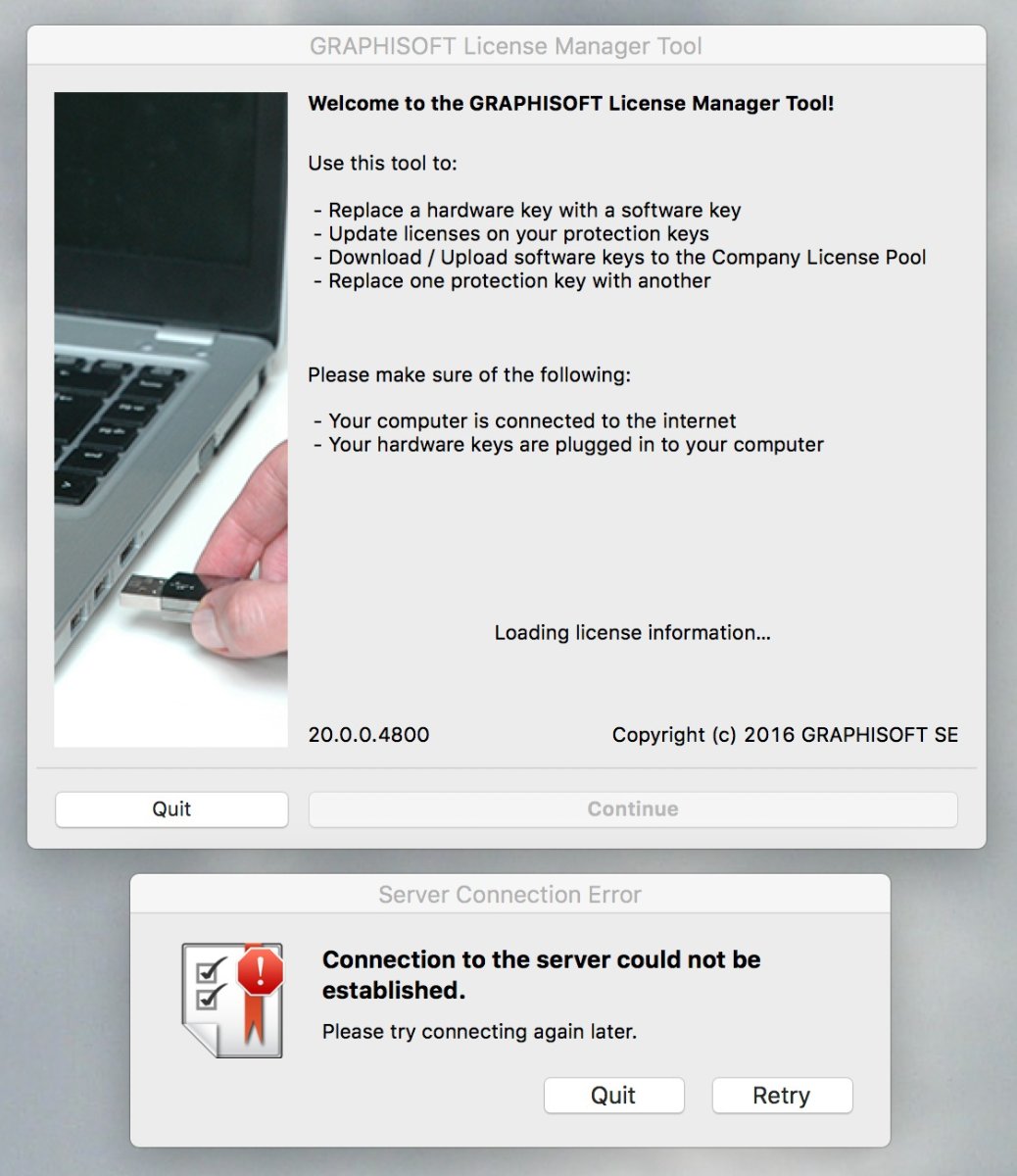
Solution
Note: If Graphisoft's licensing servers are temporarily down for maintenance or facing connectivity issues, it will be announced on our support site.
The Connection to the server could not be established error in the Graphisoft License Manager Tool (LMT) typically occurs due to network or software issues preventing the tool from accessing Graphisoft's licensing servers. Here are some common causes and troubleshooting recommendations (click on the headers to expand the information):
Internet Connection Issues
- Ensure you have a stable internet connection.
- Try switching to a different network, such as a mobile hotspot, to see if it resolves the error.
Firewall or Antivirus Interference
- Firewalls or antivirus software can block the License Manager Tool from connecting to the server. Check if any security software is blocking the application, you can test the connection by temporarily disabling them.
- Ensure that License Manager Tool can communicate with these services:
- https://activity-api.graphisoft.com
- https://bimx-api.graphisoft.com
- https://graphisoftid.graphisoft.com
- https://graphisoftid-api.graphisoft.com
- https://licensemanager.graphisoft.com
- https://logger.graphisoft.com
- https://ruleservice-api.graphisoft.com
- https://id.graphisoft.com
- https://idproxy.graphisoft.com
- https://licensemanagement.graphisoft.com
- https://companymanagement.graphisoft.com
- https://companymanagement-api.graphisoft.com
- https://app-gsitds-lmcoreapi-prod-euw-001.azurewebsites.net
- https://graphisoftid-uat.graphisoft.com
- https://surveys.graphisoft.com
- https://help.graphisoft.com/
VPN Connection
If you're using a VPN, it might interfere with the License Manager Tool's ability to connect to the server. Try disabling the VPN and connecting again.
Outdated License Manager Tool
Download and install the latest version of the License Manager Tool. Sometimes older versions may not be compatible with current servers, or newer operating system network security protocols.
Damaged hosts file
Retrieve the hosts file from your computer, and enter a ticket on our support site so we can review it.
Windows:
- Go to C:\Windows\System32\drivers\etc.
- Change the file type to All Files to view the hosts file.
- Select the hosts file and click Open.
- Save it on your desktop clicking File > Save.
- Attach it in your support request.
macOS:
- Open a Finder window
- Head to: /private/etc/hosts
- Select the hosts file and click Open.
- Save it on your desktop by clicking File > Save.
- Attach it in your support request.