Issue description
The process aims to streamline login and access for BIMcloud users by linking user accounts to a Graphisoft ID.
Solution
Connecting existing BIMcloud users to their Graphisoft ID is necessary for features like single sign-on (SSO). This connection is typically managed through the BIMcloud Manager interface.
Follow these steps to connect a BIMcloud user account to a Graphisoft ID:
- Open your BIMcloud Manager in a web browser and log in with your admin credentials.
- Go to Users and groups.
- Find the user you want to modify from the list and click on their username to open their account details.
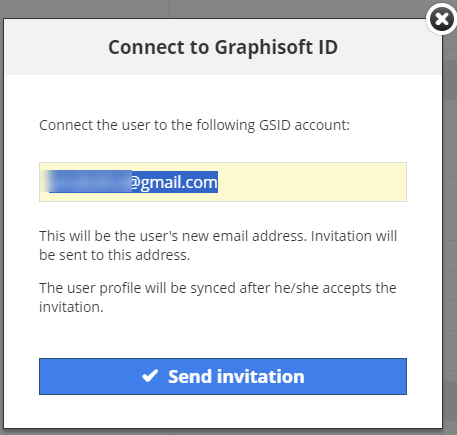
- In the user’s profile, look for an option labeled Connect user to GSID or Connect to GSID.
- Enter the user’s Graphisoft ID email address in this field. This email address must match the one registered for their Graphisoft ID.
Depending on the setup, you may need to send an invitation to the user's email address to verify the connection.
After inviting a user, you can view the invitation status and expiration date in the User Settings. The invitation will display as Pending until they accept it.
- If the GSID is recognized, the connection may happen immediately.
- If the invitation is not accepted within 7 days, it will automatically expire. You can resend or cancel the invitation from the same User Settings page before it expires.
- After entering the GSID, save the changes to the user profile.
The user should receive a confirmation email if additional steps are required. Once they accept, their BIMcloud user account will be linked to their Graphisoft ID.