Issue description
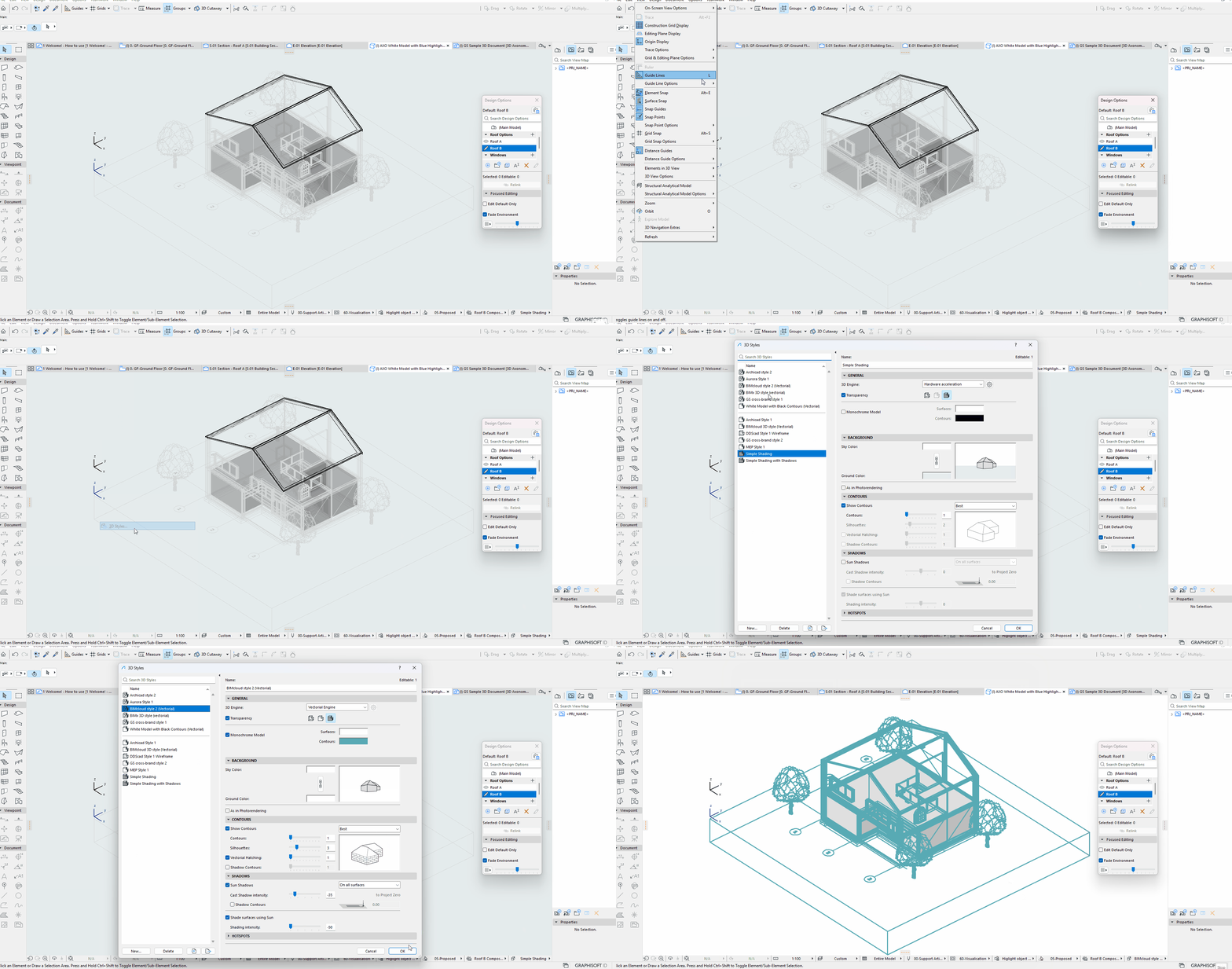
In some projects, 3D Styles do not appear to affect the 3D window. You switch between styles such as Vectorial, Shaded, or Sketch, but the 3D view keeps its previous appearance, shows a plain shaded look...
...or does not display as expected at all:
 Solution
This usually happens when another setting takes precedence over the 3D Style, or when the style itself does not contain the parameters you expect. Follow the checklist below to isolate the cause.
1. Confirm the active 3D style and view settings
- Open the 3D window and check which style is active, using the 3D Style selector in the quick options bar, via View > 3D Options >3D Styles....
- Switch to a clearly different style, for example from Shaded to Sketch, to confirm whether the display changes at all.
- If nothing changes, close and reopen the 3D window, or use Right click > Fit in Window to force a rebuild before continuing to the next step.
- Open the 3D Styles dialog and edit the style in use. Confirm the shading mode matches your expectations, and that contours, shadows, transparency, and textures are enabled if you expect to see them.
- Under View > 3D Options check if Hardware Acceleration is enabled - This setting affects real-time effects such as shadows or smooth shading; it will also disable features supported only by the vectorial engine, such as surface hatchings on the model. Toggle it to achieve the desired appearance.
2. Rule out 3D engine and project-specific causes
- Create a new project from a standard template and apply the same style there. If it works correctly, the cause is specific to the original project's View, override, or style settings.
- If the problem persists in a clean file, reset your default 3D Styles, or contact technical support with a sample file.
3. Review the settings of view filters
Some view filters contain settings that override the model's 3D appearance. Here is what to look out for:
- Graphic Overrides: combinations can change surface colors, line types, and fills in 3D, which can look like the 3D Style is not working. Temporarily switch the active override combination to No Overrides to see if the style appears as expected.
- Renovation Filter: does not apply graphic rules that override the style.
- Design Options: In the design options palette, make sure that Fade Environment is not enabled, as this overrides the model appearance of elements which do not belong to the active design option.
- Model View options: Confirm the 3D view uses the intended Model View Options combination. Some elements such as stairs, railing and curtain walls are typically affected by surface overrides. in 3D when set to schematic or simplified.
- Layer Combination: Verify the combination applied in your view, and that the 3D appearance of elements in key layers is not set to Wireframe, and and that key elements are not hidden.